I used to say that Google Ads scripts were a waste of time. I still stand by that claim for the era in which I said it. Honestly, my skepticism came from a simple reality: I can’t code. For most advertisers, writing a script meant a project that would take forever or require hiring a developer, turning a simple idea into a complex and expensive task.
But today, you can get AI to write the script for you. This is a game-changer. The time it takes to go from idea to a functional script has been cut by 90-99%. You can have a working tool in 20 minutes.
I’ve been taking huge advantage of this. In my old agency, I ran a programming team for four years. While I never learned to code myself, I did learn how to direct people who can. That experience—writing clear briefs, being specific, fixing one bug at a time—translates directly to directing an AI programmer. We’ve built everything from campaign trackers and cross-account performance overviews to budget monitors and bid portfolio updaters, all with AI. This is how we do it.
Go Beyond the Article
Why the Video is Better:
- See real examples from actual client accounts
- Get deeper insights that can’t fit in written format
- Learn advanced strategies for complex situations
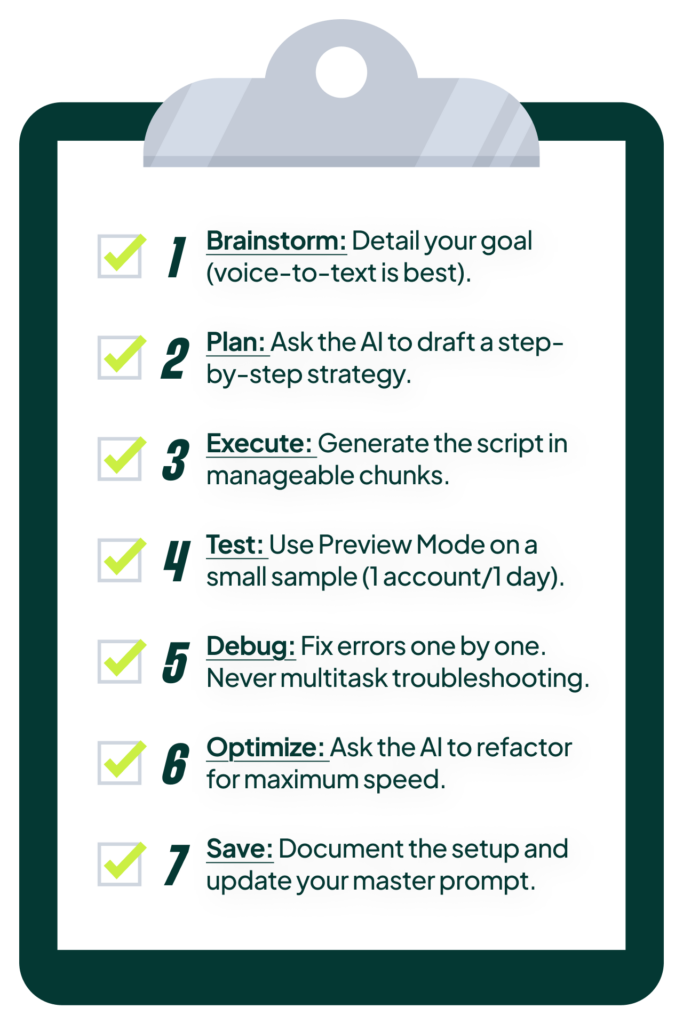
The 7-Step Process for Building Scripts with AI
This is the exact framework we follow. It’s designed to be systematic and to prevent the most common and time-consuming errors.
Step 1: Describe What You Want (With Maximum Context)
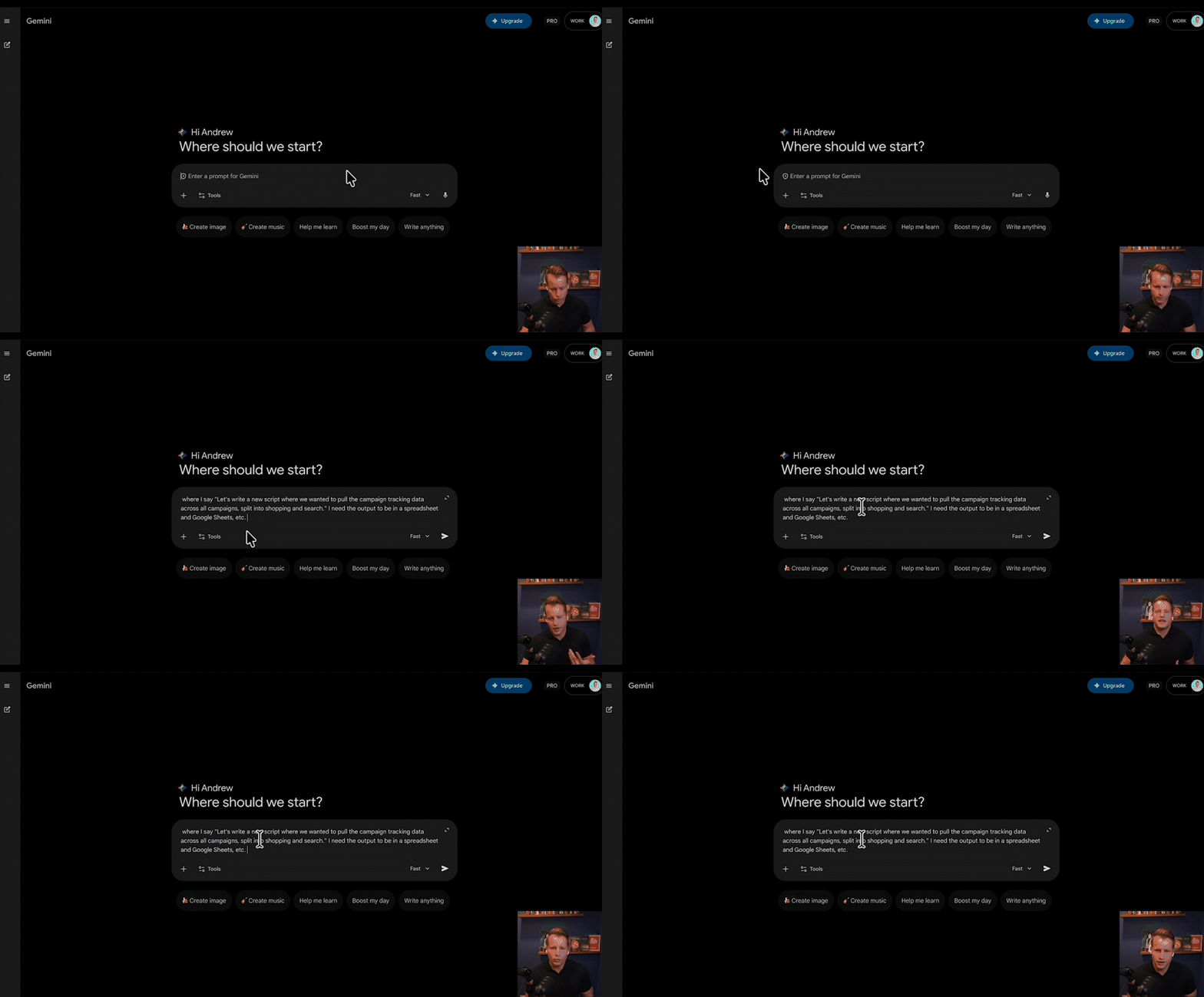
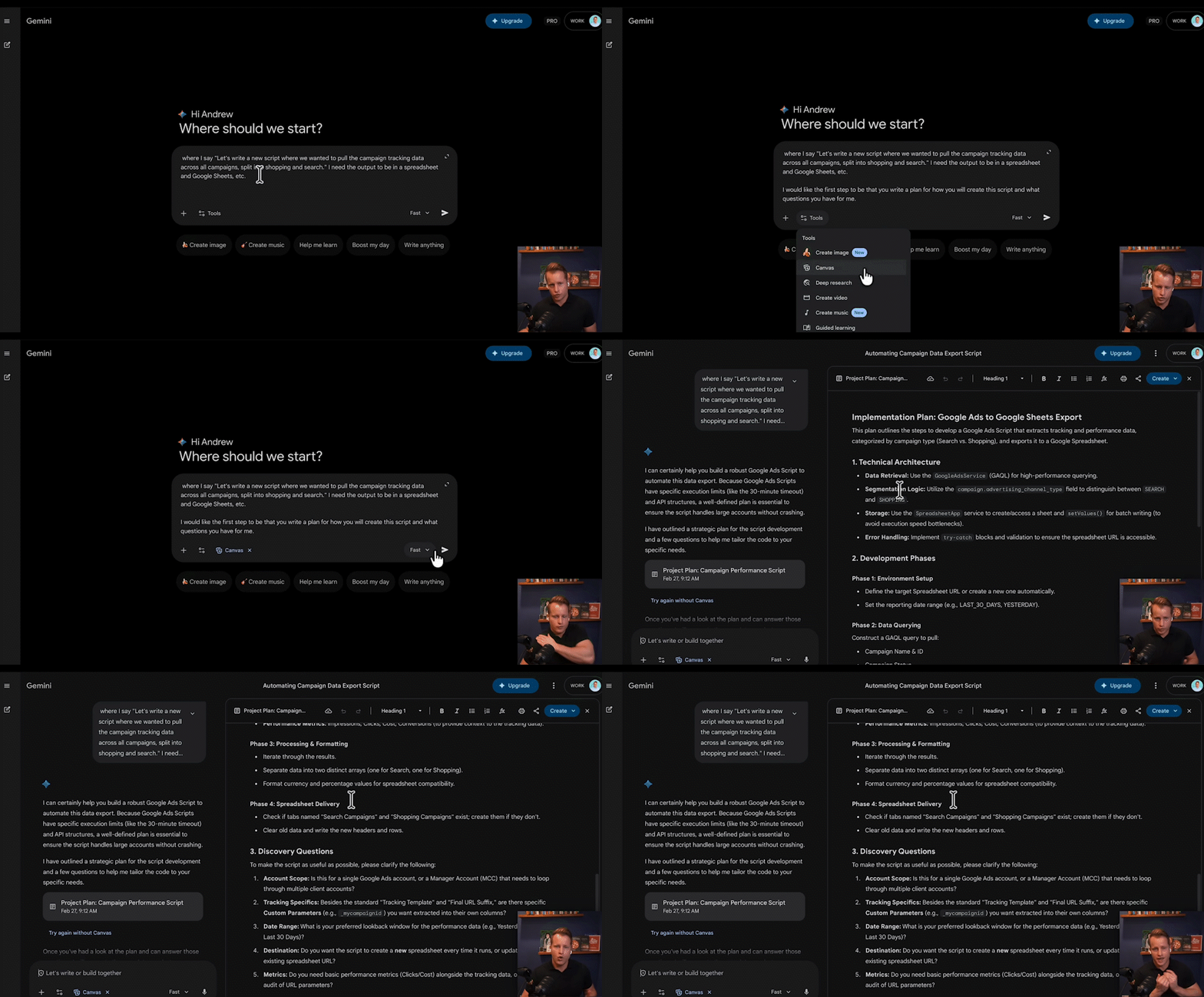
Start by simply describing what you want the script to do. The more context you provide, the better. I use a voice-to-text app to just “word vomit” everything I’m thinking: “I want a script that pulls campaign tracking data across all campaigns, splits it into Shopping and Search, and outputs it to a specific Google Sheet.” Be as detailed as possible from the outset.
Step 2: Force the AI to Write a Plan First
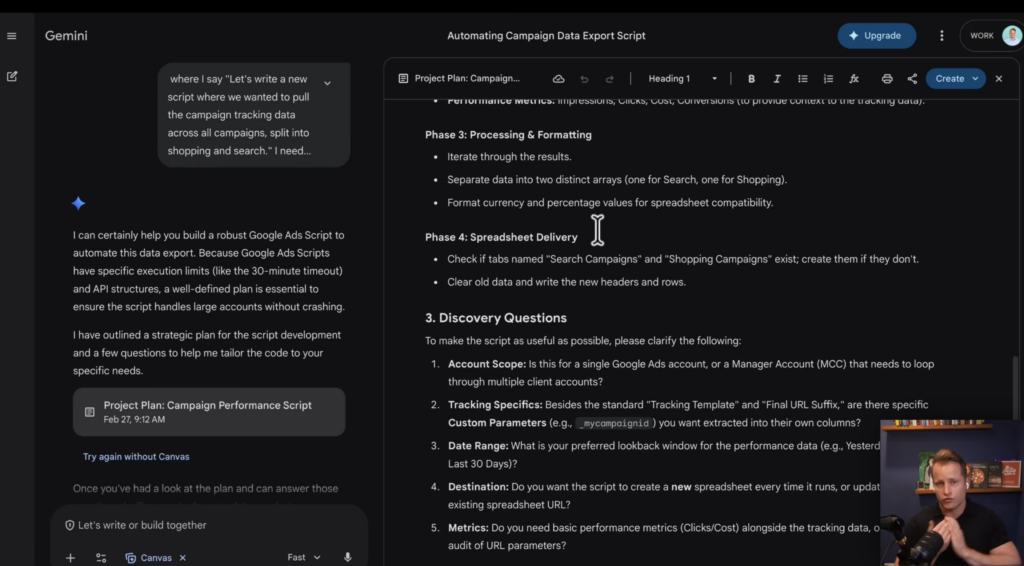
This is crucial. Do not ask the AI to write the script yet. Instead, give it this prompt: “First, write a plan for how you will create this script and list any questions you have for me.” This forces the AI to think through the logic and identify potential ambiguities before it wastes time writing code that doesn’t solve your actual problem.
Step 3: Write the Script (In Chunks or All at Once)
After reviewing the plan, you have a decision. If the plan looks good and the script is simple (e.g., a basic reporting script), you can ask the AI to write the entire script in one go. If it’s more complex (e.g., a script that reads data, makes a decision, and then writes a change back to the account), ask the AI to tackle the plan in chunks. “Great, let’s start with the part that fetches the data.”
Step 4: Test It Small and Fast
Once you have the first version of the script, you need to test it. The key here is to limit the scope so your tests run quickly. Don’t waste five or eight minutes on every test run by pulling data from an entire MCC for the last year. Limit the test to a single account (ideally one without much data), a single campaign, and a single day. You want feedback in seconds, not minutes.
Step 5: Troubleshoot Errors One by One
The script will have errors. I can almost guarantee it. When it does, describe the error to the AI, paste in any error messages from the logs, and ask it to identify possible issues and solutions. The critical rule here is to fix one thing at a time. Don’t give it a bulleted list of five problems. It will get confused, and you won’t know which “fix” broke something else.
Step 6: Optimize for Speed
Once the script is functional, ask the AI to make it faster. A prompt like, “Review this script and identify parts that can be optimized for faster execution,” can sometimes shave 50-80% off the run time. This might seem minor for a script that runs overnight, but if you ever need to run it manually, you’ll be thankful it takes 30 seconds instead of four minutes.
Step 7: Document Everything
Finally, ask the AI to document its own work. Prompt it to summarize what the script does and how to set it up. Save this in your team’s central knowledge base (we use Notion). I promise you, a new team member (or even you in three months) will not remember the setup process. This step makes your scripts a reusable asset, not a one-off project.
My Unbreakable Rules for Directing the AI Coder
Following the process is half the battle. The other half is adhering to a set of rules I’ve learned (often the hard way) from building dozens of these scripts.
Before You Start: Define, Validate, and Mock Up
Garbage in, garbage out. The quality of your prep work determines the quality of the final script.
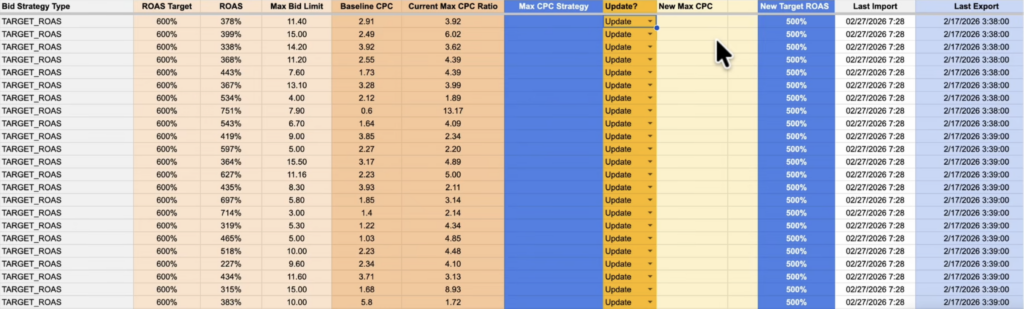
- Be Precise: You can’t direct someone if you don’t know where you’re going. Spend 10-20 minutes defining exactly what you want the script to achieve. A vague request like “I need something that updates these ads” will lead to a vague and useless script.
- Start with Reporting Scripts: Before you build anything that makes changes in an account, get comfortable with reporting-only scripts. They are far less dangerous.
- Confirm It’s Even Possible: Let me save you the hours I wasted on a project that was doomed from the start. I once spent two hours trying to build a script to update bid portfolio strategies. The AI kept insisting it was possible with just one more small change. The problem? You can’t make changes to bid portfolio strategies through a script; it requires the API. Before you start, describe what you want to the AI and ask, “Is every part of this possible to achieve with a Google Ads Script? Be a devil’s advocate and assume I know nothing.”
- Decide: MCC vs. Single Account: This is a simple but critical decision to make up front. The code for an MCC-level script is different from a single-account script.
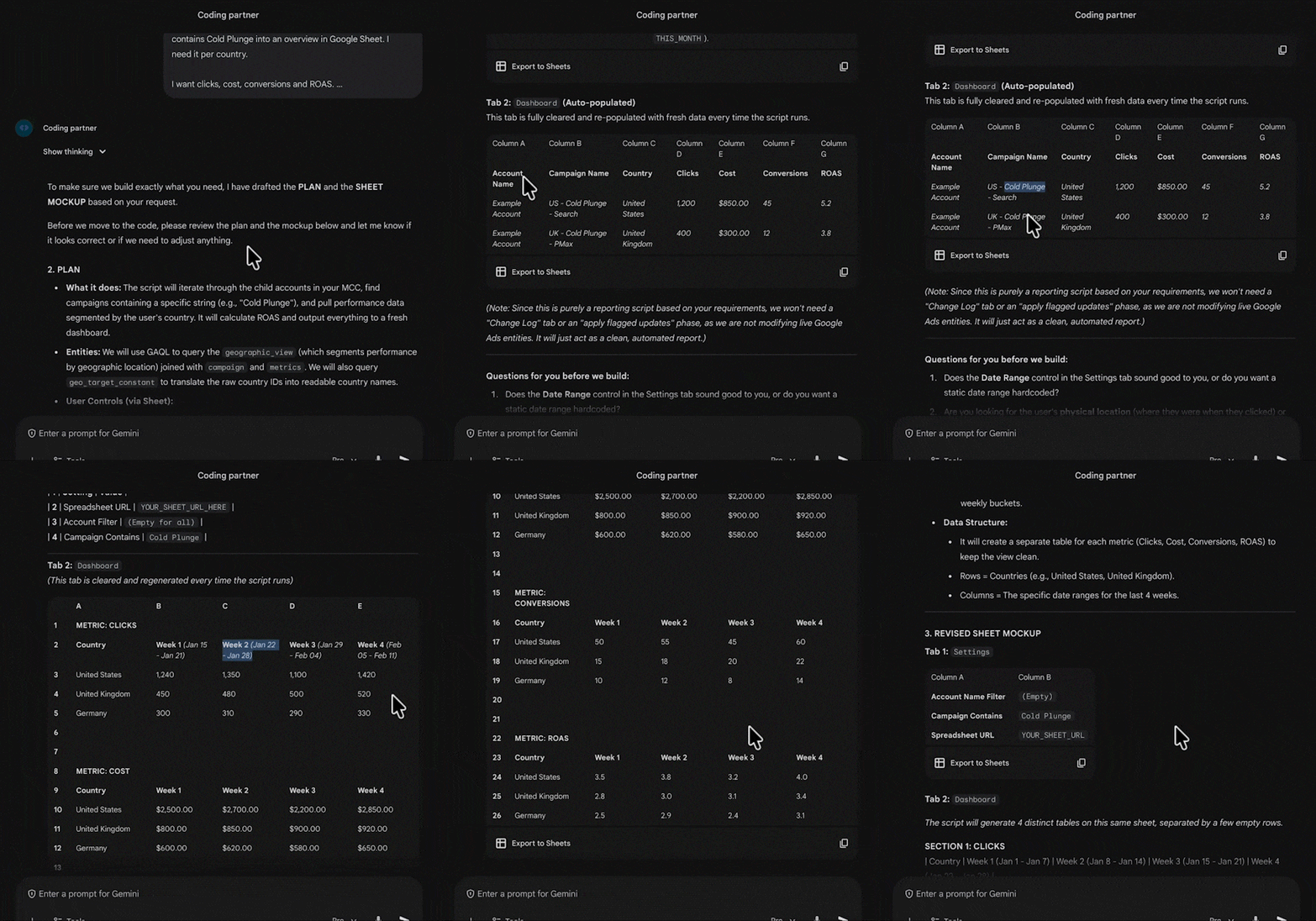
- Mock Up Your Output: This is the most important rule. Don’t just describe the output you want in words; create a mockup. Sketch out the Google Sheet, including the tabs, columns, and formatting. A visual mockup is 10 times clearer than a written description and saves an incredible amount of time in revisions.
While You’re Building: Stay Disciplined
Directing the AI requires a methodical approach. Don’t get sloppy.
- Test Every Single Change: Every time you ask the AI to alter the script, no matter how small the change, test it again. You will thank me later. Professional programmers use version control for this, which is overkill for our purposes, but the principle is sound: ensure your base is stable before adding complexity.
- Don’t Context Switch: The AI will take 30-60 seconds to generate code. Resist the urge to check email or Slack. That context switching burns a ton of mental energy. Save your brainpower for writing good prompts. Just sit and look out the window.
- Don’t Edit Code Yourself: The AI will sometimes suggest replacing a specific chunk of code. Unless you’re comfortable with the code, I find it’s safer and easier to just ask for the complete, updated script and replace the whole thing. The line numbers it references are often incorrect.
- Think Through the Plan Yourself: The AI can get stuck on the wrong problem. I once had a script that wasn’t pulling all search terms. The AI suggested checking the date range, then checking campaign statuses (enabled vs. paused). The real issue, which was obvious in its plan, was that it was filtering for `advertising_channel_type = SEARCH`. It was doing exactly what it was told, but it couldn’t see the bigger picture. I needed all channels, not just search.
- Start a New Chat if You’re Stuck: Long chat histories can sometimes make the LLM “dumber” as it gets confused by the context. If you find yourself going in circles, it’s fine to start fresh in a new chat window.
Essential Features Every Good Script Should Have
Over time, we’ve baked a few standard features into our base prompt to make every script more robust and user-friendly.
- A Settings Sheet: Instead of hard-coding variables like date ranges or account names into the script, have the script pull them from a dedicated “Settings” tab in your Google Sheet. This allows anyone on your team to change parameters without ever touching the code.
- Account/Campaign Filters: In your settings sheet, include filters for account names or campaign names. This makes testing much easier, as you can quickly specify “Only run this for the Denmark account.”
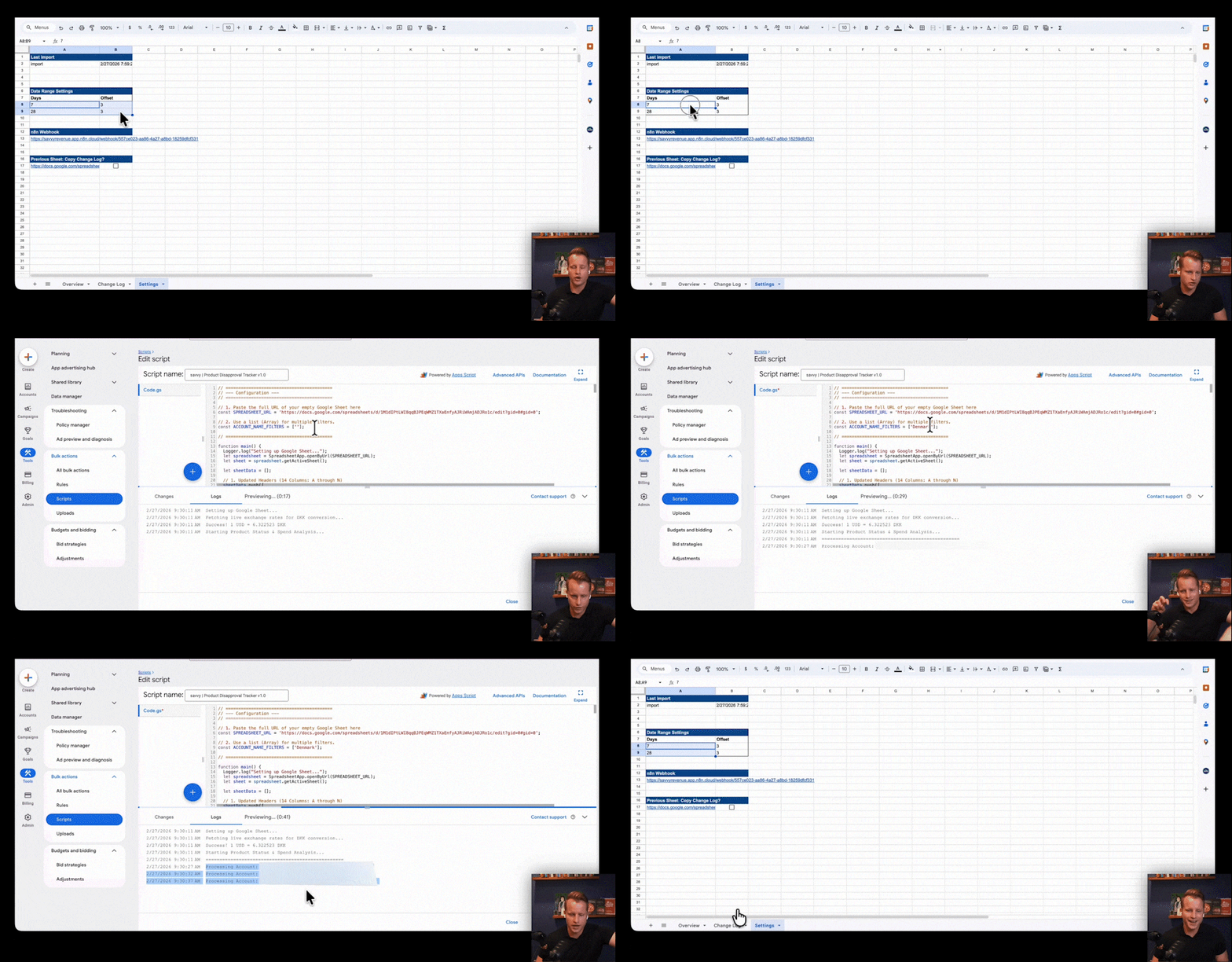
- “Heartbeat” Diagnostic Logging: The script should print updates to the log as it runs: “Fetching account data,” “Processing campaigns,” “Writing to spreadsheet.” Without this, if the script gets stuck, you’ll have no idea where or why.
- A Change Log: If your script makes changes to an account, it absolutely must log every change it makes to a separate tab. It should record what was changed, the data it used to make the decision, and a timestamp. This is non-negotiable for troubleshooting and analysis.
When Building a Script is a Bad Idea
I’ve spent this whole article explaining how AI makes scripting a game-changer, but there’s an opposite side. It’s not always the right tool for the job. Here are three situations where it’s not worth the effort.
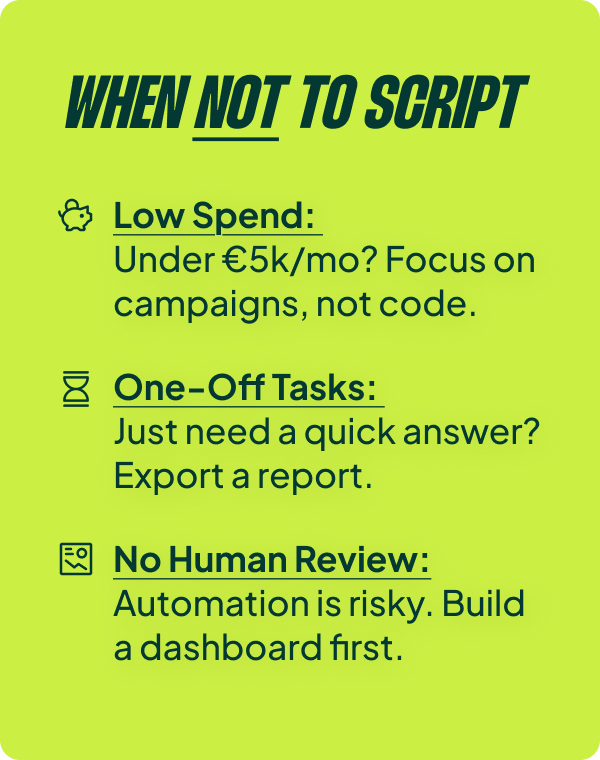
- You only manage one or two small accounts. The time investment, even with AI, probably won’t pay you back. Manual work is fine.
- You need a quick, one-time answer. If you just want to know “which ad groups had zero impressions last week,” use the report editor. It’s faster than building a script for a question you’ll never ask again.
- You want to automate changes without review. This is dangerous. If you plan to let a script adjust bids or budgets on autopilot without a human approval step, you’re asking for trouble. People often don’t think through the math. The classic mistake is a rule like “increase by 20%” and “decrease by 20%.” If you increase $100 by 20%, you get $120. If you then decrease $120 by 20%, you get $96, not $100. Over time, these simple math errors can quietly destroy performance.
For everyone else, this is a massive opportunity. Start with a simple reporting script, follow the process, and you’ll have your first working tool within hours. You’ll wonder why you didn’t do it sooner—just like me.
[TL;DR]
- AI has dramatically lowered the barrier to entry for Google Ads scripts, turning them from a time-consuming developer task into a powerful tool for any advertiser.
- A disciplined, 7-step process is key: Describe > Plan > Write > Test Small > Troubleshoot > Optimize > Document.
- Always force the AI to write a plan before it codes, and always mock up your desired output visually. This prevents most common failures.
- Build robust scripts from the start by including a settings sheet, diagnostic logging, and a change log for any automated actions.
- Scripts are not a silver bullet. They are a bad idea for very small accounts, one-off questions, or fully automated changes that lack human review.